

USER GUIDE
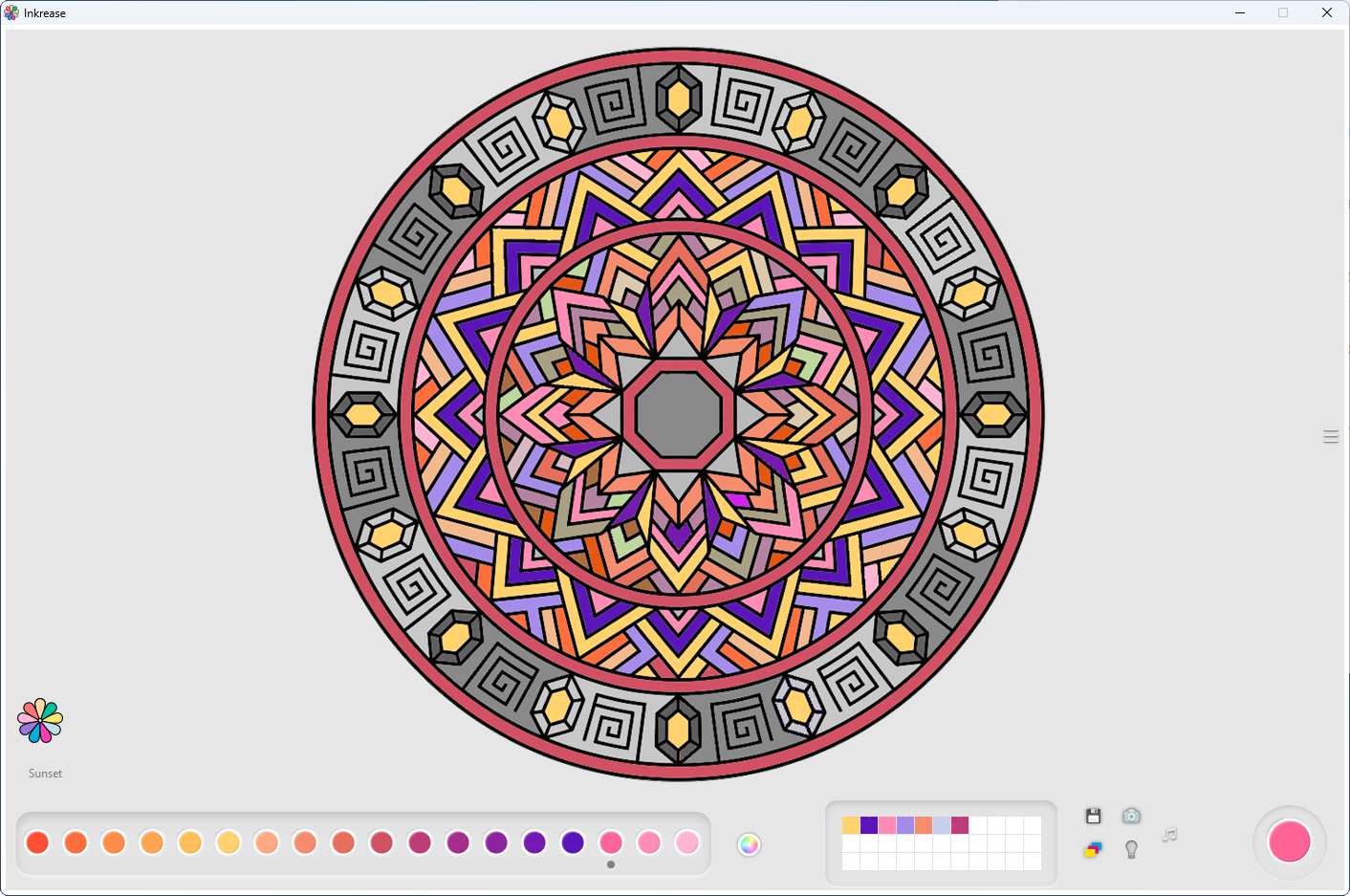
Inkrease Inkrease is a program designed to paint figures and enjoy a relaxing moment to reduce stress and anxiety, while improving concentration and creativity
for Windows 10 64 bits, version 1909 or above
requires the .NET Desktop Runtime 8
for Windows 10 64 bits, version 1909 or above
requires the .NET Desktop Runtime 8
Introduction

1 - Figure to paint
2 - Bottom: color palette, on the left the name of the palette in use
3 - Change color palette
4 - Favorite colors
5 - Action buttons
6 - Color in use
7 - Open/close image selection panel
2 - Bottom: color palette, on the left the name of the palette in use
3 - Change color palette
4 - Favorite colors
5 - Action buttons
6 - Color in use
7 - Open/close image selection panel
Usage
Painting
Left‑click to paint a shape
To erase what you painted, right‑click on the shape
Left‑click to paint a shape
To erase what you painted, right‑click on the shape
Favorite colors
Double‑click on a square to open the Windows color palette and choose a color to save
To save a color to the favorite palette, press Ctrl + left‑click on a square
You can delete a saved color by pressing Ctrl + right‑click on the square containing the color
Clicking on a favorite color square will select that color for painting
Double‑click on a square to open the Windows color palette and choose a color to save
To save a color to the favorite palette, press Ctrl + left‑click on a square
You can delete a saved color by pressing Ctrl + right‑click on the square containing the color
Clicking on a favorite color square will select that color for painting
Action buttons
 Save
Save
Allows you to save the drawing to your computer in the location you choose
Saved drawings become part of the Inkrease gallery
SaveAllows you to save the drawing to your computer in the location you choose
Saved drawings become part of the Inkrease gallery
Usage
 Gallery
Shows a gallery with the drawings you have saved
 Theme
ThemeAllows you to change the Inkrease theme
If you double‑click outside the figure area, the background color will change
 Help
HelpOpens the help page
 Music
MusicOpens a Spotify playlist with bilateral stimulation music for greater relaxation
Usage

Selection panel
The selection panel shows the images you can choose to paint
If an image has a dot in the upper‑right corner, it means it has already been opened and partially painted. When opening it, you will be asked whether you want to continue painting it or start again with a blank image
To close the panel, click the button you used to open it or click in the area to the left of the figure
The selection panel shows the images you can choose to paint
If an image has a dot in the upper‑right corner, it means it has already been opened and partially painted. When opening it, you will be asked whether you want to continue painting it or start again with a blank image
To close the panel, click the button you used to open it or click in the area to the left of the figure
Usage
Gallery